Seedance 2.0 has two modes. Most guides cover the obvious one: upload an image, get a video. First frame, last frame, done.
The second mode is called omni reference. It is the reason Seedance 2.0 produces better character consistency than any other video model available today, and almost nobody is covering it properly.
Omni reference lets you upload up to 12 files across four input types, images, videos, and audio, and assign each one a specific role in your prompt using the @ mention syntax. Instead of the model guessing what your reference means, you tell it exactly what each file contributes: this is the face, this is the camera movement, this is the background music.
This is the feature that separates creators getting inconsistent 5-second clips from creators building multi-shot sequences where the same character appears across different scenes.
Two Modes: First/Last Frame vs Omni Reference
Seedance 2.0 on Dreamina runs in two distinct modes, and understanding the difference matters before you touch any settings.
First/Last Frame Mode (labeled "Pro 2.0" in Dreamina) takes a starting image and an optional ending image, then generates video that transitions between them. Upload a character standing, upload them sitting, and the model fills in the motion. This mode works well for controlled image-to-video transitions but limits you to 2 image inputs.
Omni Reference Mode is fundamentally different. It accepts mixed multimodal inputs as references without requiring an exact starting frame. You upload materials that guide the generation, character faces, style references, camera motion clips, background audio, and the model uses all of them together to produce the output.
The input limits for omni reference:
| Input Type | Maximum | What It Controls |
|---|---|---|
| Images | 9 | Character faces, environments, style palette, objects |
| Videos | 3 | Camera motion, choreography, pacing (total 15s or less) |
| Audio | 3 | Music, sound effects, dialogue (total 15s or less) |
| Total | 12 | Combined across all types |
How the @ Mention System Works
When you upload files to Dreamina, each receives an automatic label: @Image1 through @Image9, @Video1 through @Video3, @Audio1 through @Audio3. You reference these tags directly in your text prompt.
To trigger it: type @ in the prompt field to get an autocomplete dropdown, or click the @ toolbar button.
Here is what a real omni reference prompt looks like:
With the character in @Image1 as the subject, she walks through
a neon-lit Tokyo street at night. Camera movement follows @Video1
for rhythmic push and pull. Background music from @Audio1.
Maintain facial identity from @Image1 throughout.
The @ tags are not decorative. Without them, the model has no way to know which uploaded file serves which purpose. If you upload 4 images without @-referencing them, the model blends them unpredictably.
The Three Reference Roles
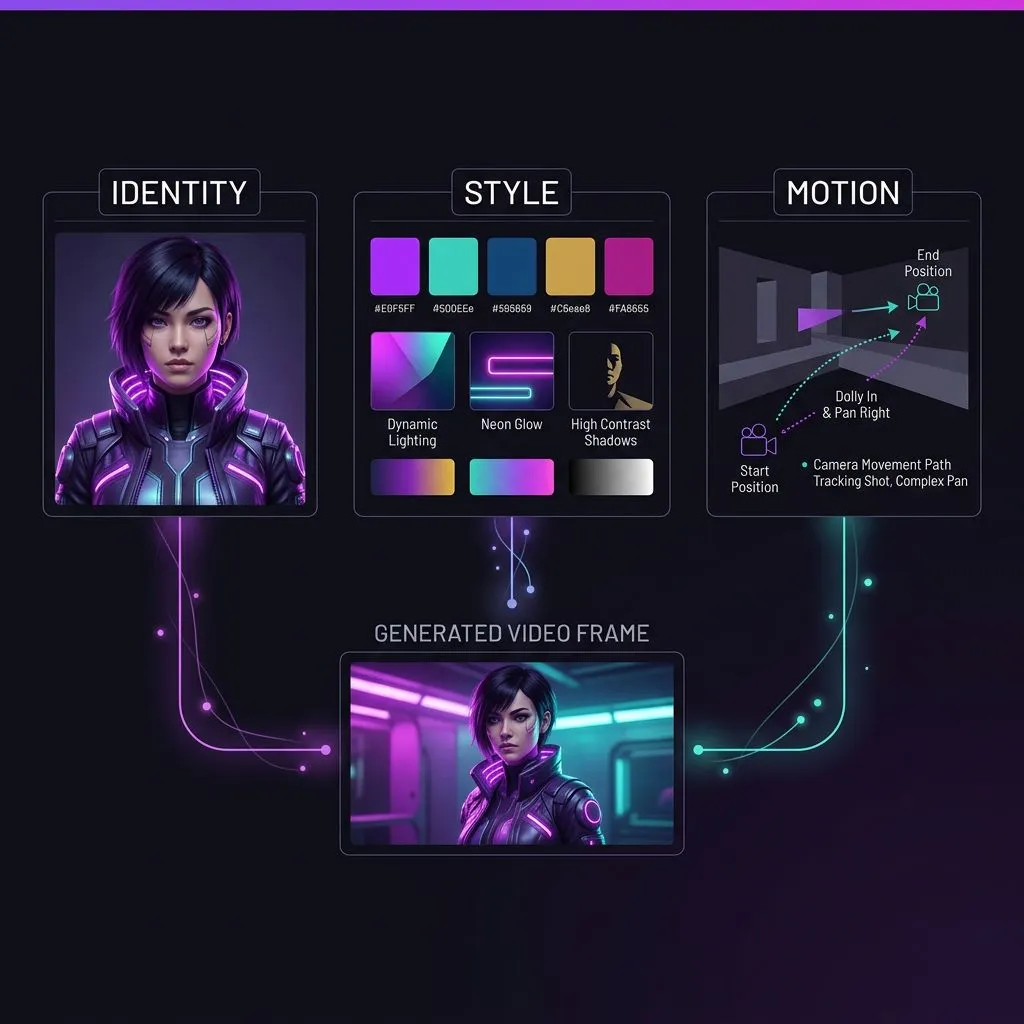
Every reference you upload serves one of three functional roles, whether you think about it that way or not. Being explicit about roles is the single biggest factor in getting consistent results.
Identity (Hero) Reference
The face or product that must stay recognizable across every frame. This is your visual anchor.
Best practices:
- Use ONE strong identity image, not multiple. Multiple face images cause face averaging, where the model tries to blend them, producing subtle morphing across frames.
- Crop tight around the subject. A full-body shot with a busy background dilutes the identity signal.
- Use explicit language: "Primary identity anchor: @Image1. Do not alter facial proportions, eye shape, or hairstyle."
- If real face uploads are blocked (ByteDance suspended this on February 10, 2026), use AI-generated character references instead. We cover this workaround in detail in our Seedance 2.0 face workaround guide.
Style Reference
Lighting, color palette, and texture. This controls the visual mood without affecting who appears in the video.
Best practices:
- Use 3 to 5 small swatches rather than a single image. Multiple style patches reduce color drift across multi-clip sequences compared to relying on one hero style image.
- Keep style references consistent in their own lighting. A sunset swatch combined with a fluorescent interior swatch sends contradictory signals.
Motion Reference
Camera behavior and pacing. Upload a 3 to 8 second clip that captures the camera pattern you want: slow dolly, parallax, handheld shake, snap zoom.
Best practices:
- The model extracts camera movements, action choreography, and pacing from video references. It does not copy the content, just the motion language.
- Keep action beats to 1 to 3 steps. Complex choreography (punch, dodge, counter, roll) almost always produces incoherent motion. Simple actions work.
Try Omni Reference Yourself
Seedance 2.0 is available on VicSee. Upload your reference images, add @ mentions in your prompt, and generate your first multi-reference video.
New accounts get free credits, no credit card required. Same interface for all video models: switch between Seedance 2.0, Kling 3.0, and Veo 3.1 with a single dropdown.
Scene Chaining: Extending Beyond 15 Seconds
A single Seedance generation produces 4 to 15 seconds of video. For longer sequences, creators use scene chaining: using the output of one generation as a reference for the next.
The workflow:
- Generate your first clip with a strong identity reference
- Pick the best frame from the output (usually the last clean frame)
- Upload that frame as the identity reference for the next generation
- Repeat, adding new motion or audio references for each scene
This works because the model treats your previous output as identity truth. As long as the character's face is clean and well-lit in the reference frame, it carries forward.
The risk is cumulative drift. After 4 to 5 chained generations, subtle changes compound. The character's jaw might soften, hair color might shift slightly. The fix: periodically return to your original character reference sheet rather than always chaining from the latest output.
Omni Reference vs Other Models
Every major video model handles character references differently. Here is how Seedance 2.0's approach compares.
| Feature | Seedance 2.0 Omni Reference | Kling 3.0 Elements | Veo 3.1 | Sora 2 |
|---|---|---|---|---|
| Image inputs | 9 | 1-2 + 4-image Element Binding | Start + end frame | 1 optional |
| Video references | 3 | None | None | None |
| Audio references | 3 (native) | None | Native (separate) | None |
| Role assignment | Explicit @ syntax | Automatic binding | Two-frame steering | None |
| Character consistency approach | Explicit reference extraction | Physics-first simulation | Cinematic realism | Physics simulation |
| Control level | Granular, compositional | Set-and-forget | Narrative scale | Minimal |
Kling 3.0's Element Binding is more automated. Lock a character and it stays consistent without manual prompt engineering. Seedance 2.0 requires more explicit setup but gives finer control over what each reference contributes.
Veo 3.1 and Sora 2 cannot accept video or audio references at all. You cannot upload a motion clip and say "match this camera movement."
As Dave Shapiro (188K subscribers) put it, the two bottlenecks in AI video are character reference pain and voice. Omni reference solves the first one. Veo 3.1's native audio addresses the second. No single model solves both yet.
Common Mistakes and How to Fix Them
Uploading too many references
More is not better. The sweet spot is 3 to 5 core images plus 1 to 2 video references plus 1 audio. Using all 12 slots creates information overload where the model tries to satisfy every constraint simultaneously and satisfies none well.
Skipping role assignments
Without explicit language in your prompt, the model blends all references together. Always specify what each @ reference controls: "Identity from @Image1. Style from @Image2. Camera from @Video1."
Using low-quality source material
Weak references produce weak output. Low resolution, heavy Instagram filters, or inconsistent lighting in your reference images propagate directly into every frame. Use clean, well-lit references with consistent color temperature.
Multiple face images for one character
Three photos of the same person from different angles seems logical. In practice, the model averages the faces, producing a morphing effect. One strong frontal or three-quarter view performs better than multiple angles.
Expecting 8K cinema from 720p output
Seedance 2.0 generates at 720p by default (1080p ceiling). Plan for upscaling in post if you need higher resolution. Generate at native resolution, evaluate the output, then upscale winners.
Five-Part Prompt Template
Based on practitioner testing, this five-part structure consistently produces the best results with omni reference:
- Subject identity: Define the character's key visual traits and anchor to @Image reference
- Scene: Location, lighting, time of day, weather
- Action beats: 1 to 3 short actions (not complex choreography)
- Camera direction: Framing, movement, angle. Anchor to @Video reference if used
- Consistency constraints: Explicit instructions to maintain identity, wardrobe, color palette
Example:
Primary identity: the woman in @Image1 with dark curly hair and
red leather jacket. Scene: rainy city rooftop at dusk, neon signs
reflected in puddles. Action: she turns from the railing and walks
toward camera. Camera: medium shot, slow push-in following @Video1
pacing. Maintain facial proportions and wardrobe from @Image1
throughout. No face distortion. No color palette shift.
FAQ
What is Seedance 2.0 omni reference?
Omni reference is Seedance 2.0's multi-input reference system that lets you upload up to 9 images, 3 videos, and 3 audio files to control different aspects of video generation. Each file is assigned a role (identity, style, motion, audio) using the @ mention syntax in your prompt. It is the more advanced of Seedance 2.0's two modes, designed for creators who need granular control over character consistency, camera movement, and audio.
How many reference images can Seedance 2.0 use?
Seedance 2.0 accepts up to 9 images, 3 videos, and 3 audio files simultaneously, for a total of 12 reference inputs. However, the practical sweet spot is 3 to 5 images plus 1 to 2 video references. Using all 12 slots often produces worse results because the model tries to satisfy too many constraints at once.
Can I use real face photos as references in Seedance 2.0?
ByteDance suspended real face uploads on February 10, 2026 after concerns about voice cloning without consent. The facial detection system now blocks human reference photos. The workaround is to generate AI character portraits as references instead. Our face workaround guide covers the step-by-step process.
How is omni reference different from Kling 3.0's reference system?
Kling 3.0 uses Element Binding, which automatically locks character identity with minimal setup. Seedance 2.0's omni reference requires explicit @ mention syntax to assign roles to each reference, giving you more control but requiring more prompt engineering. Seedance also accepts video and audio references, which Kling 3.0 does not support. Kling is easier to start with; Seedance gives you more control once you learn the system.
What resolution does Seedance 2.0 generate at?
Seedance 2.0 generates at 720p by default with a ceiling of 1080p. Output length ranges from 4 to 15 seconds. For higher resolution, generate at native quality and upscale the best outputs in post-production.
Try Seedance 2.0 on VicSee
VicSee gives you access to Seedance 2.0 alongside every other major video model, all through one interface.
Upload your reference images, use the @ mention syntax in your prompt, and generate multi-reference videos. Compare results against Kling 3.0, Veo 3.1, or Sora 2 using the same references.
New accounts get free credits, no credit card required. Start generating at VicSee.